Thomas Rigby suggested I write this “Five Ws of Reading”, which is super fun!
I'll link below to the other posts I came across using these prompts. Let me know if you wrote one! Go to Thomas’ post to get an easy copy/paste of the questions if you like.
WHO – An author you would love to have a ‘one to one’ with?
I would like to have a chat with Isaac Asimov. I would like to discuss with him the “Three Laws of Robotics” and how they would apply to our current state of technology. I would like to know his thoughts about the Internet, artificial intelligence, social media, bots, slop, the good, the bad, and the ugly.
WHAT – What genre do you most gravitate to?
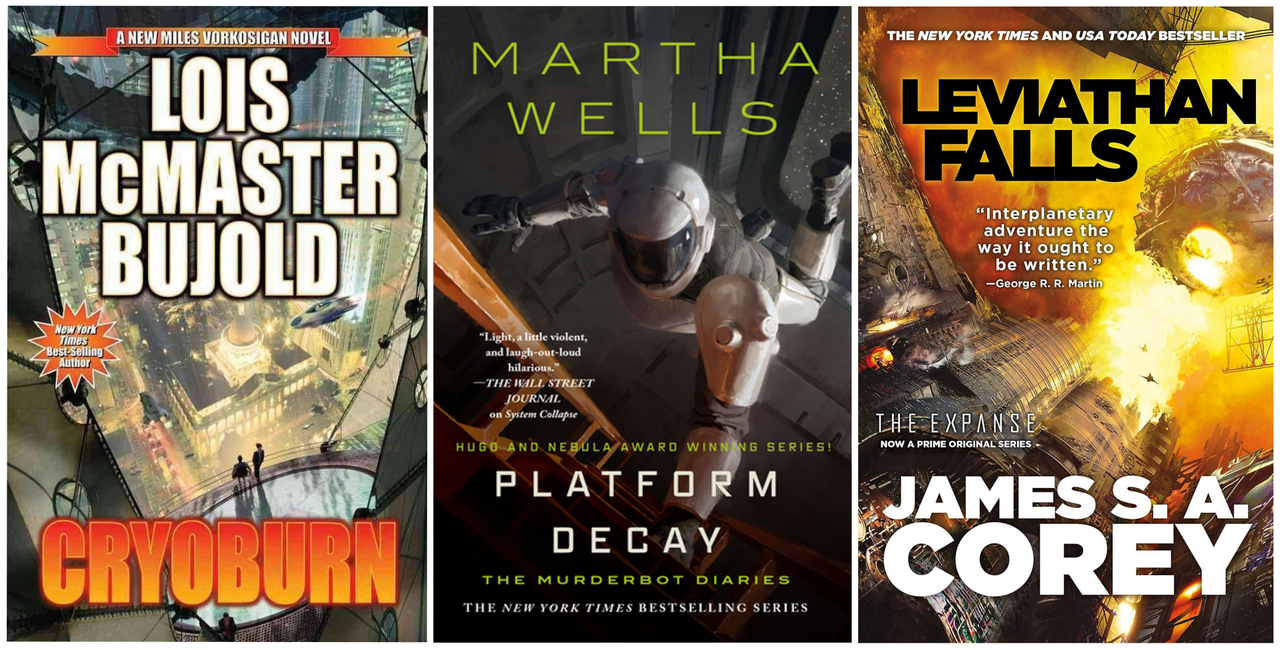
I've always been interested in both Science-Fiction and Fantasy since my early childhood. Lately I've been gravitating more towards Science-Fiction, even though I've read a lot of Fantasy.
Actually, I have data to prove this point. I used The StoryGraph to generate two reports: a list of all the books I've read by genre and a list of the 5-star rated books by genre (I'm showing here only the top 10 genres)
Overall, I've read more Fantasy than Sci-fi, in terms of total number of books read (757 tracked books in total, of which 208 were Fantasy):
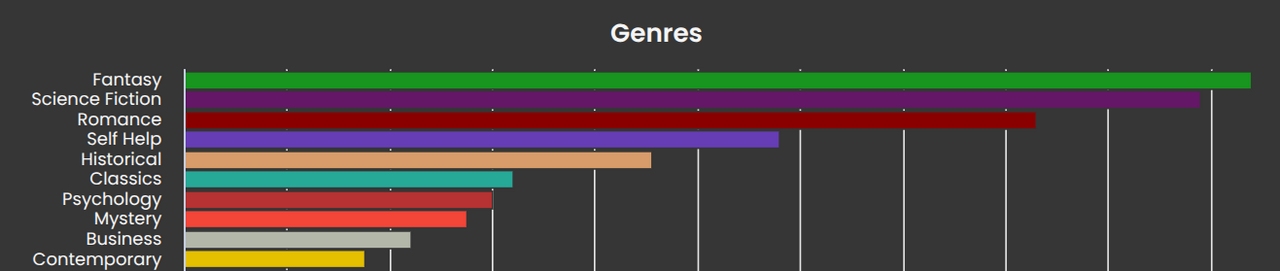 My all time books read stats by genre (generated by The StoryGraph)
But If I look at my favorite books, rated with 5 Stars, then the winner is Science Fiction:
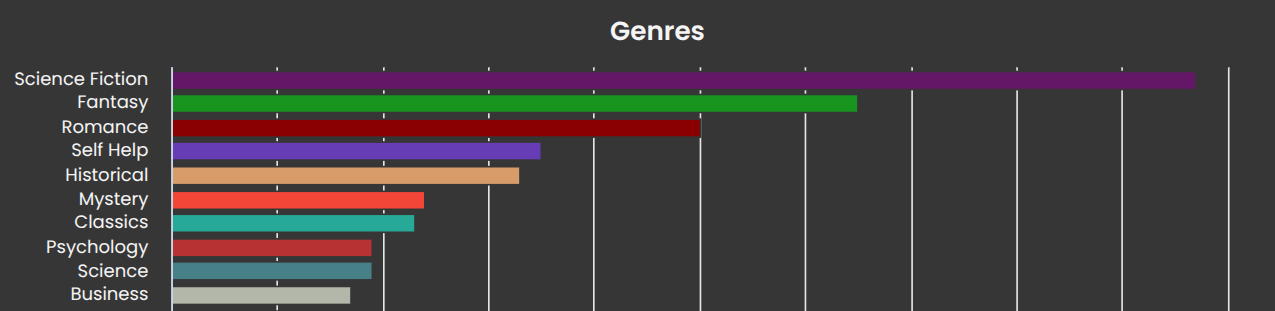 My all-time 5-star rated books, by genre
So, science fiction it is!
WHERE – Where do you prefer to read?
At home, in my reading corner, with blankets and a cup of tea. Snacks are good too. But I literally carry my Kobo with me anywhere, so anywhere can work too (the only time I don’t have my Kobo within easy reach is when I’m out running or exercising at the gym).
WHEN – What time of day do you prefer to read?
I love reading in the mornings, but during weekdays I end up not having that much time available before work. On the weekends I love starting the morning reading a book, while having a slow breakfast. But as long as I have the energy, any time is a good time to read for me. I try to squeeze out any downtime I have during the day to read.
WHY – Why is your favourite book your favourite book?
It's because I like the characters and it has an interesting plot. If I don't relate to at least one character, then I'm more likely to stop reading the book. It's also because I enjoy the narrative voice. I have to be able to create an emotional connection to the story. The storytelling style must match the character's personality and point of view. In summary, I care deeply about the world and its characters.
A book that took me into a fascinating world
For some reason “Dune” by Frank Herbert came to my mind. I first read this book 25 years ago, and I still think about it. It was such an immersive experience for me. The way it builds an entire universe, with its own unique ecosystem, religion, politics, philosophical discussions, and power struggles is amazing.
A book that made me cry (or maybe two)
“Everything is Tuberculosis” by John Green. It's a great mix of personal stories and historical data about tuberculosis. It is a call to action that left me feeling both devastated and hopeful.
But I would also include here the graphic novel “Maus” by Art Spiegelman. I still think about this novel. I caught myself in tears in many moments while I was reading. It’s not an easy topic (Nazism and the story of a Polish Jew who survived Auschwitz concentration camp). Extremely touching. We can't forget this horror so as to not repeat it again, ever.
A book that was thoughtful and profound
“The Demon-Haunted World: Science as a Candle in the Dark” by Carl Sagan has shaped a lot of my worldview. It is not only a defense of science against pseudoscience, but also a celebration of human curiosity with its sense of wonder about the universe. I still remember the “Baloney Detection Kit” and “The Dragon in My Garage” story. This book is timeless, and it's a reminder that a little common sense and healthy skepticism are some of the best tools we have for looking out for one another.
A “comfort” book, read and re-read many times
I'm not a big re-reader. But if I have to name a book I've re-read multiple times, that's “Getting Things Done” by David Allen. I still learn a lot each time I read this book. It is a book that has shaped my adult life and helped me organize my thoughts and my goals and led me to think about higher horizons like life purpose and principles. If you have read this blog for a while, you already know how much I like this author.
Bonus – How do you go about selecting what you will read next?
I have a huge TBR list! I mark the books I want to read on The StoryGraph, and right now, I have 384 books in there (yeah, I probably need to do a clean-up).
At the beginning of every year, I create a shortlist for the next 12 months and drop it into an Excel spreadsheet. I use the fantastic one developed by the creators of the “Currently Reading” podcast.
Then each month I compile a shortlist from my local Book Club (or another online book club I follow) and my personal wish list. I keep this updated weekly using The StoryGraph 'Up Next' feature to track books I want to tackle next. I limit this list to up to 5 books, never more.
I think that other than following book club picks, I just go with what my gut tells me.
Other great posts to read with the Five Ws of Reading:
List of Books mentioned in this post:
(Publication date at the end)
“Dune” by Frank Herbert (1965)
“Everything is Tuberculosis” by John Green (2025)
“Maus” by Art Spiegelman (1994)
“The Demon-Haunted World: Science as a Candle in the Dark” by Carl Sagan (1997)
“Getting Things Done” by David Allen (2001)
—
#readinglist #books #reading
Thoughts? Discuss... if you have a Write.as account or Reply by email
By Noisy Deadlines
Minimalist in progress, nerdy, introvert, skeptic. I don't leave without my e-reader.